Author: hmason

  • Mobile app: WHEREAMI

    WHEREAMI is a mobile application that accepts a username as input, searches public profiles on various location-aware services, and returns the user’s last known location via text message.

    Just text 41411 with whereami <username>, where <username> is a username that you or someone you know is likely to use.
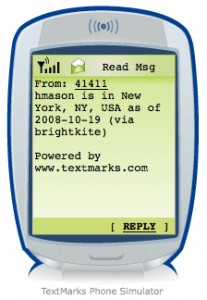
    results of WHEREAMI hmason

    For example, if you text whereami hmason to 41411, you’ll see a response much like the image to the left.

    This app works on the principle that people tend to use the same username for many applications. The WHEREAMI script will search through a variety of web services for a result for that username. All of the information is public and available without logging in.

    Right now, the script will search Brightkite, then Dopplr, and finally Twitter. If you know of another site with public user location information, please comment below and I’ll add it!

  • Twitter: A greasemonkey script to show who follows you

    A couple of days ago I saw @skap5’s comment:

    “Dear Twitter Is it too much to ask to add a follower marker so I can know if someone is following me and not just if I am following them?”

    I think that Twitter could benefit from displaying more information on the home page, and this idea was easy enough to code up. It should save some time and make the Twitter homepage that much more useful.

    twitter_showfollowers_screenshotThe script displays a tiny icon on top of the portrait of people who are following you back on your Twitter home page. It leaves your non-followers alone, though it would be easy enough to develop a version that puts silly mustaches on them.

    This is only a first version, and I welcome your comments and suggestions.

    If you already have Greasemonkey installed, get the script here, or install it from here as a Firefox extension thanks to the script compiler.

    The icon is a free icon courtesy of famfamfam.

  • Welcome

    Welcome

    Hello, and welcome to everyone who found this site via Torley’s story on the Second Life blog!

    I lead the Immersive Media Lab at J&W University. Several of our projects have utilized Second Life, including Virtual Morocco (cultural exchange and tourism promotion for the country of Morocco) and SLMetrics (a study of behavior modeling in virtual environments).

    This isn’t a Second Life blog, but you will find LSL scripts and other related ephemera around.

    You can subscribe to the RSS feed for this site, or find out more about me at HilaryMason.com.


  • The Essential Elements of Geek Culture (March, 2008)

    Office Space Movie Poster

    I was talking to my web programming seminar about regular expressions and made an allusion to the xkcd comic on that topic. Unfortunately, none of them had seen it, probably because none of them were familiar with xkcd.

    Students should become familiar with the concepts and practice of the discipline, but also with the culture and in-jokes that will help them fit in when they get into industry or graduate school. I also like to get people to laugh in ways that are relevant to the subject material (yes, I use a lot of cheesy geek jokes — ask me to tell you my LISP joke sometime).

    I asked the Twitter community what other geek cultural elements I should introduce the students to, and here are the answers:

    This list is thanks to (in order of appearance) @mediacrisis, @rubaiyat, @techpickles, @mattgillooly, @hempstyle, and @inkedmn.


    <!–

    –>

  • How to Control Second Life with a Wii-mote (on a Macbook Pro)

    wii + SL = cool

    My research group had some fun controlling SL with a Wii-mote a few weeks ago. It’s easier than you think! Several people have asked how we did it, so I hope these quick instructions might come in handy.

    1. Download, install, and run DarwiinRemote.
    2. Turn Bluetooth on on the Macbook. You can do this by opening the Bluetooth Preferences Pane (Apple menu, System Preferences and choose “Bluetooth” under Hardware) and clicking the big “Turn Bluetooth On” button. If Bluetooth is already on, you can skip this step!
    3. Hold the Wii-mote in front of the Macbook and press buttons 1 and 2 simultaneously. The LEDs on the Wii-mote will flash.
    4. As you move the Wii-mote, you’ll see your movement plotted on the screen, as you see below.
    5. Drop down the option box and choose “Mouse Mode On (Motion)”.
    6. Load up Second Life.
    7. Fly! By default, you can control the direction with the direction keys at the end of the Wii-mote.
    8. Laugh with glee, because this is cool.

    darwiinmote


    <!–

    –>